Once your solar system is activated, the Tesla app becomes the easiest way to see what your panels, home, grid connection, and Powerwall are doing in real time. This guide walks you through the main screens so the app feels simple instead of overwhelming.
Getting your solar panels activated is one of the most exciting moments in your solar journey. Once you get permission to operate from your power company and your system is turned on, the next step is downloading your system’s monitoring app to your phone.
If you have a Tesla inverter or Powerwall, Tesla’s free app lets you see how your panels are performing in real time, how much energy your home is using, when you are pulling power from the grid, and how your Powerwall is behaving throughout the day.
But the first time you open the app, it can feel like a lot. There are energy lines moving in different directions, color-coded icons, live numbers updating every few seconds, and different settings depending on whether you have a battery. If you have never seen it before, it is completely normal to wonder what you are looking at.
Although our team walks you through the app when your system is activated, this guide is meant to be a simple reference you can come back to whenever something looks confusing.
The Energy Flow Screen
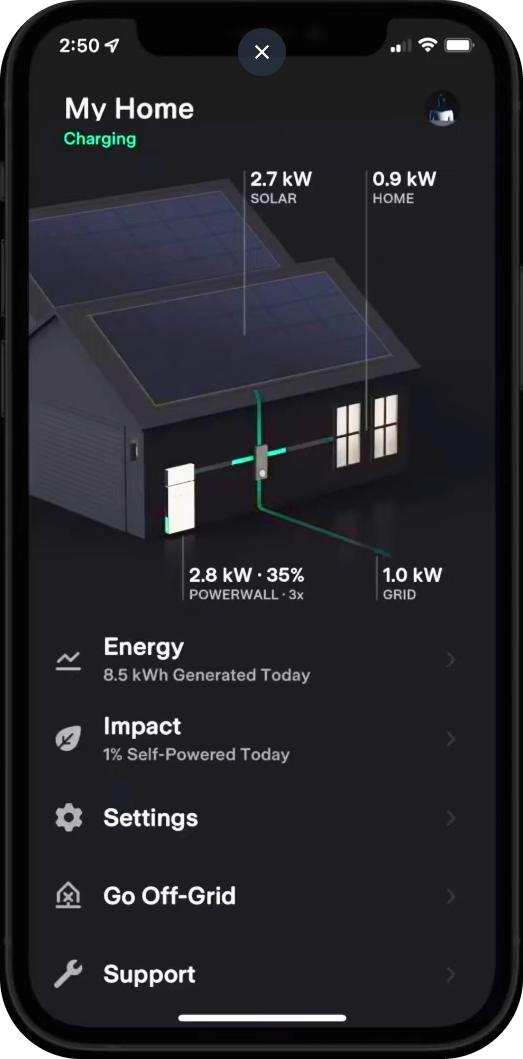
When you open the Tesla app, the energy flow diagram is usually the first screen you see. This live graphic shows your home in the center, with your solar panels, the utility grid, and your Powerwall connected around it.
The moving lines show where your energy is going in real time. When power is flowing from the solar panels to your home, your panels are actively powering your home. When energy flows from solar to the grid, your system is producing more electricity than your home is using at that moment.
When your system sends extra solar energy back to the grid, that energy may help build net metering credits with your utility, depending on your utility program and billing setup.
If you see energy flowing from the grid to your home, that means your home is drawing power from the utility. This is completely normal at night, on cloudy days, or anytime your usage is higher than what your panels are currently producing.
If you have a Powerwall, you may also see energy flowing from the battery to your home. That means your battery is covering your home’s load without the grid getting involved. This can happen during an outage, during certain battery settings, or during peak billing hours depending on how your Powerwall is configured.
You will also see numbers next to each icon. These show the current wattage or kilowatts for that part of the system. The readings update every few seconds, so the app may look slightly different each time you check it.
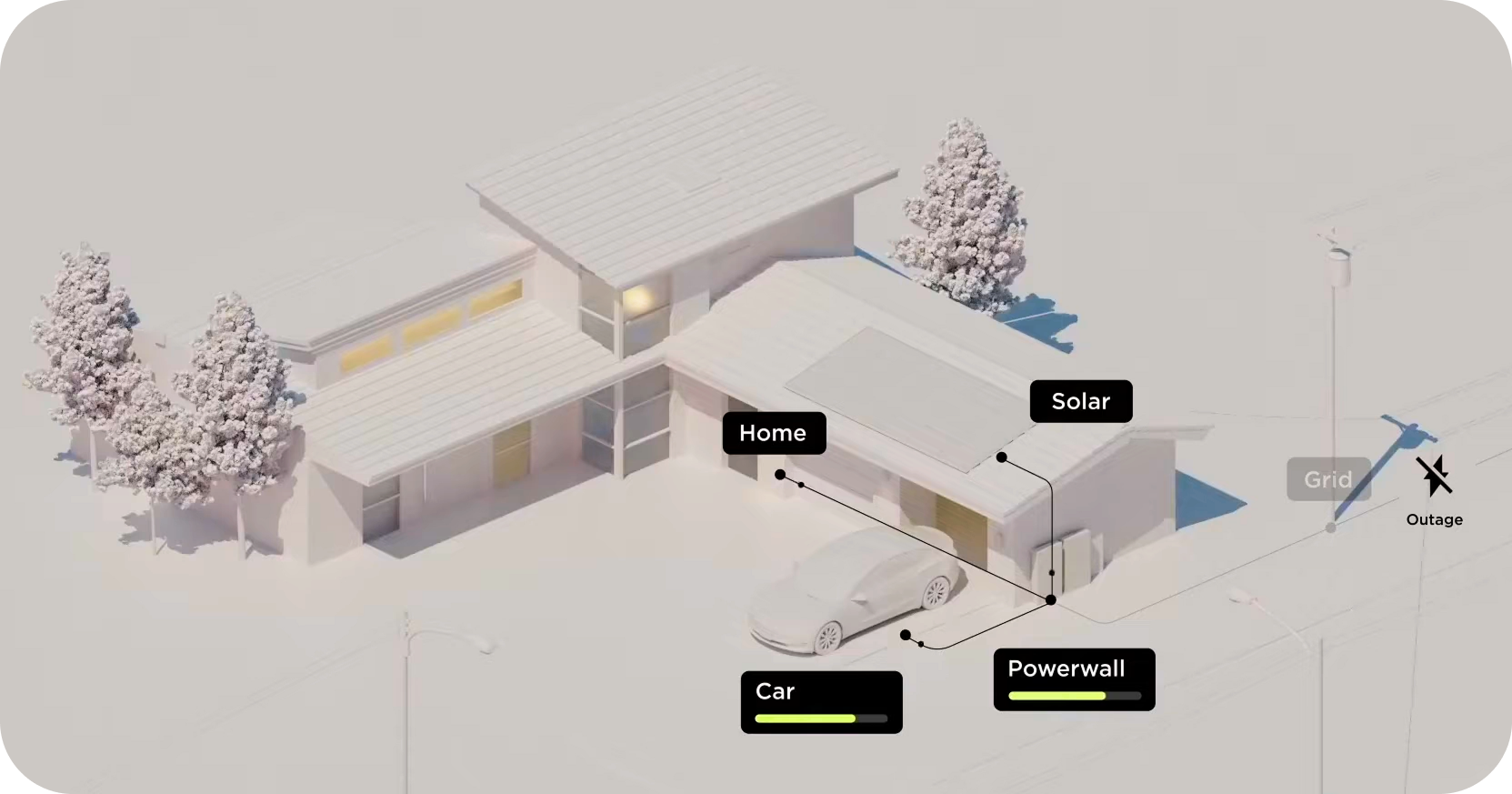
The energy flow screen shows where power is coming from and where it is going in real time.
Pro Tip: Tap the eye icon near the bottom of the graph screen to enable the Energy Flow layer. This gives you a more detailed view of where energy is coming from and where it is going, broken down by percentages and kilowatt-hours.
What The Colors Mean
Tesla uses a consistent color system throughout the app. Once you know what each color means, the app becomes much easier to understand at a glance.
Yellow represents solar production from your panels. Blue represents your home’s energy consumption. Gray shows energy moving to or from the utility grid. Green shows your Powerwall charging or discharging.
Keep these colors in mind as you move through the app. The same color language carries across the different screens, which makes it easier to understand your system once it clicks.
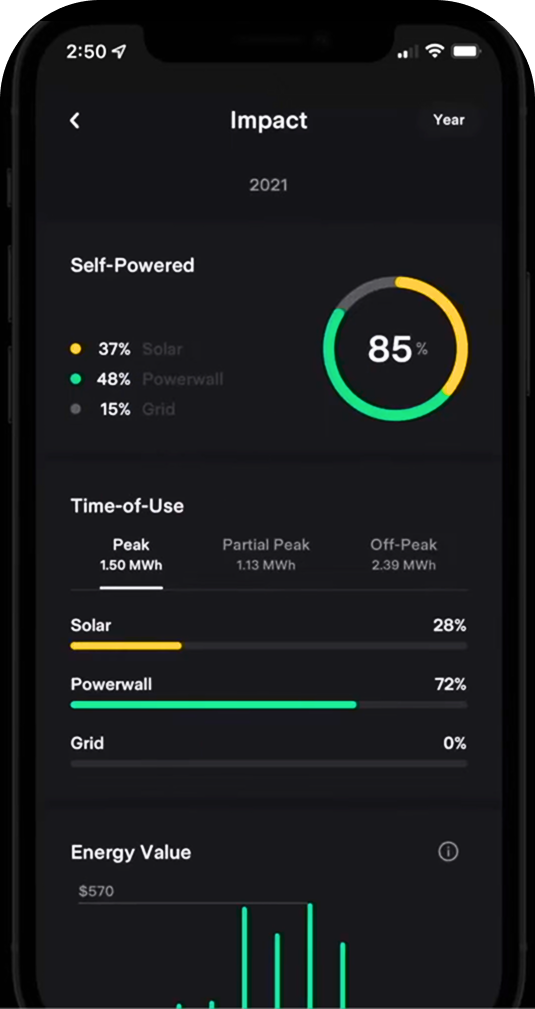
The Tesla app uses consistent colors to show solar production, Powerwall activity, and grid usage.
Powerwall Modes
If you have a Powerwall, the mode it is set to controls how your battery behaves. A lot of homeowners have a Powerwall but do not know which mode they are actually running.
To check, open the Tesla app and go to Settings > Powerwall. From there, you can see which mode is selected.
Backup-Only
This is the mode we recommend for many homeowners who mainly want outage protection. It keeps your Powerwall reserved for emergencies and activates when the grid goes down. If your app shows the battery staying close to 100% with little or no charging and discharging activity, your system may be set up for backup protection.
Self-Powered
In Self-Powered mode, your solar panels charge the battery during the day when your system is overproducing. Later, the Powerwall can power your home before the grid gets involved. This mode is not usually the best fit for every New York homeowner, so it should be used only when it makes sense for your utility setup and goals.
Time-Based Control
Time-Based Control is designed for homeowners on time-of-use rate plans. Your Powerwall can charge when electricity is less expensive and discharge during more expensive peak hours. Tesla also uses solar forecasts and usage patterns to adjust how the battery behaves, and it may take about a week before the system starts acting predictably.
Pro Tip: If outage protection is your main concern, Backup-Only is usually the simplest setting. If you are on a time-of-use plan, Time-Based Control may be worth exploring, but only if that rate plan has already been saving you money.
Storm Watch
Storm Watch is one of the most useful Powerwall features. When severe weather is expected in your area, your Powerwall can prepare by charging ahead of time so your home is better protected if the grid goes down.
For New York homeowners dealing with nor’easters, ice storms, summer thunderstorms, and other outage risks, this feature can make a real difference. Instead of hoping your battery happens to be charged when the power goes out, Storm Watch helps prepare your Powerwall before the storm arrives.
When Storm Watch activates, you may receive a notification from the Tesla app. Your Powerwall will then prioritize charging, often up to 100%, so it is ready for a possible outage before the storm hits.
To check the setting, go to Settings > Storm Watch in the Tesla app and make sure it is turned on. Your phone needs to be paired to your Powerwall, and certain system settings may need to be enabled by your installer for the feature to work properly.
Pro Tip: Turn on Storm Watch before winter. If your system supports it, there is no reason to wait until bad weather is already on the way.
Final Thoughts
Once you understand what the Tesla app is showing you, it stops feeling confusing and starts becoming one of the best parts of going solar. You can watch your panels work in real time, see when your home is using grid power, track net metering activity, and understand how your Powerwall is protecting your home.
The app also gives you a simple way to confirm that your system is working. You can see your production, your usage, your grid activity, and your battery status without guessing.
If you are an Empire Solar customer and something in your app does not look right, call our team. We can review your system remotely and help you understand exactly what is happening.
If you are reading this because you are still thinking about going solar, we would be happy to show you what your home could produce and what your savings could look like with the right system design.
Want to see what solar would look like for your home?
Empire Solar has installed solar for over 7,300 New York homeowners since 2015 and is one of the few installers to receive NYSERDA’s Platinum Installer Award. We can show you what your system could produce, what your monthly savings may look like, and whether a Powerwall makes sense for your home.
Request Your Free Savings Plan